

Security Best Practices
- Rotate tokens regularly. Use expirations and rotate before they expire.
- Grant only what you need. Prefer minimal scopes.
- Use service accounts for automation. Avoid personal tokens in CI/CD.
- Store tokens in environment variables or a secret manager. Do not hard‑code tokens.
There are two primary types of keys you can manage, Ingestion Keys and IAM Access Keys.
Ingestion Keys
Ingestion keys are used by log collectors like the Mezmo Agent to send log data to Mezmo, and are also used in commands for the Ingest API. You can have up to 10 ingestion keys active at a time. Your organization permissions determine which ingestion-key actions you can take.IAM Access Keys
Identity and Access Management (IAM) access keys represents a significant step forward in enhancing the security of your interactions with our services. IAM access tokens offer several key advantages over the Generation 1 service keys, including:- Enhanced Security: IAM access keys provide more granular control over permissions and integrate with advanced security features, reducing the risk of unauthorized access.
- Improved Auditing Capabilities: IAM Access keys offer enhanced auditing over legacy service keys, detailing who, what, when, and where actions occur. This improves security breach identification, suspicious activity investigation, and audit trails for compliance, offering clearer visibility for proactive security and efficient incident response.
- Improved Flexibility: The new access key system allows for more flexible and dynamic management of access rights, enabling you to manage your integrations with greater precision.
- Future-Proofing: This change aligns with industry best practices for secure access management, ensuring that our security infrastructure remains robust and adaptable to evolving threats.
Personal Access Keys (sta)
Personal Access Keys will be generally available End of Q1 2026
- Accessing APIs with user-level permissions
- Automating tasks that require user authentication
- Integrating with third-party tools and services
- Performing operations within the scope of the user’s access
Service Accounts (sts)
A service account is a non-user identity that has its own key and its own permission set. Service accounts are associated with a Service Account Key for automation and CI/CD. These tokens are not associated with a normal user with in your organizations and as such, its level of access is only limited by the access it is granted. For this reason it is highly recommended that the ability to create service account and keys be reserved for account administrators. You can have up to 50 service accounts active at a time.
Enterprise Service Accounts (ste)
Enterprise Service Accounts and their access keys are associated with an enterprise rather than an individual Mezmo account. These types of access keys are enabled to perform operations and interactions across many accounts in an effort to streamline and optimized account management for large customers who may have many dozens to hundreds of accounts.
Enterprise Service Accounts are only available through our enterprise dashboard.
Access and Generate New Keys
- Log in to the Mezmo Web App.
- Go to Settings > Organization > API Keys.
- To generate additional ingestion keys, click Generate Ingestion Key for up to a total of 10 keys.
- To generate additional service accounts, click Create Service Account for up to a total of 50 keys.
- Remove an ingestion key by clicking the X next to it. Note that any applications actively using this key will no longer be able to send logs to your account
Key names must be 3 to 50 characters long and can contain only letters, numbers, underscores
_, periods ., and hyphens -. You can’t use spaces, accented or non-English letters, or other symbols or punctuation in a key name. If a name breaks these rules, you can’t save it until you fix it.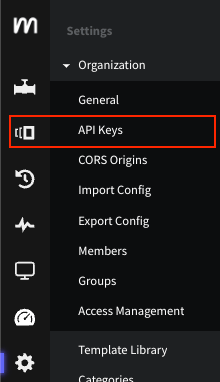
Access to the API Keys through Settings > Organization
Ingestion Keys and Your Permissions
What you can do with ingestion keys depends on your organization permissions, which apply in cumulative levels. A view-level permission lets you see the ingestion keys. The next level also lets you generate ingestion keys with the Generate Ingestion Key control and rename an existing key by editing its name in the table. A higher level also lets you delete ingestion keys by clicking the X next to a key. Controls you don’t have permission to use appear disabled rather than hidden. Hover over a disabled control to see why it’s unavailable. The API Keys page opens for anyone with permission to view any of its key tables, so you may reach the page even without permission to view ingestion keys. For how roles and permissions work, see Role-Based Access Control. For the permissions each role grants, see the Feature Access Matrix.Manage Service Accounts and Keys
The keys table and its actions apply to your IAM Access Keys: personal access tokens, service accounts, and enterprise service accounts. Manage ingestion keys with the steps in Access and Generate New Keys above. After you create a key, it appears in a table with Name, Access, Created, and Actions columns. The Name column shows only a masked trailer of the secret, displayed as····<trailer>, so the full key value never appears in the table. The Access column lists the key’s assigned roles or permissions.
From the Actions column, the row actions available to you depend on the key type:
- Rename is available for all key types. For personal access tokens, availability to you also depends on your permissions. See Personal Access Tokens and Your Permissions.
- Edit permissions is available for service accounts and enterprise service accounts, and only when role-based access management is enabled for your organization. It is not available for personal access tokens.
- Rotate is available for service accounts only. It is not available for enterprise service accounts or personal access tokens.
- Delete is available for all key types. For personal access tokens, availability to you also depends on your permissions. See Personal Access Tokens and Your Permissions.
Personal Access Tokens and Your Permissions
For your own personal access tokens, the actions available to you also depend on your own permissions, in three cumulative levels:- View permission lets you view your own personal access tokens.
- The next level lets you Create and Rename tokens.
- A higher level lets you Delete tokens.
For personal access tokens, whether Create, Rename, and Delete are available to you also depends on your permissions; see Personal Access Tokens and Your Permissions above.
For information on using IAM Access Keys to interact with the Mezmo platform APIs, see: Authenticating With The API